The moment you try to do almost anything with a PDF, you hit a paywall. Compress it? That'll be £9.99 a month. Merge two files? Sign up for a free trial first. Edit a single sentence? Adobe would like your credit card details.
It's one of the most common digital frustrations for people in both the US and UK — and it's completely unnecessary. There are genuinely good, completely free PDF tools available online right now that require no account, leave no watermark on your file, and don't nag you to upgrade.
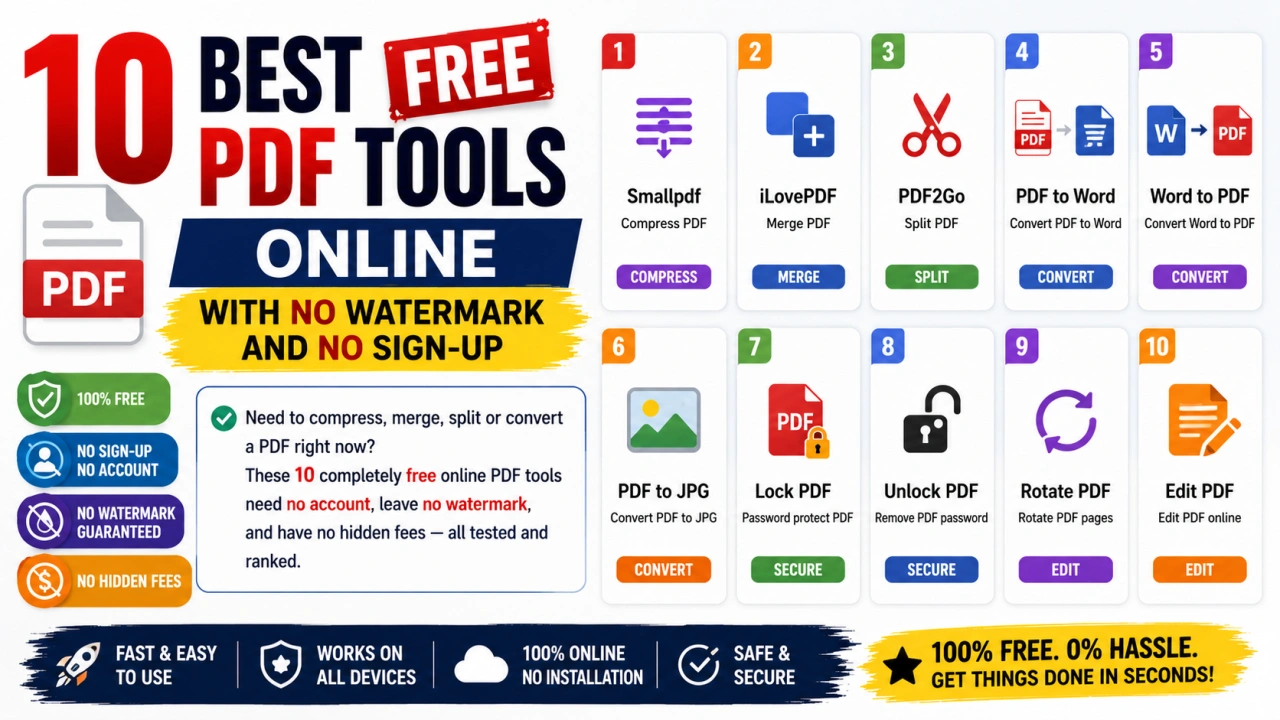
Here are the ten best ones, tested and ranked.
1. PDF24 — Best Overall Free PDF Tool
PDF24 is the most generous completely free PDF tool available. It handles compression, merging, splitting, conversion, rotating, reordering pages, adding page numbers, password protection, and more — all from the same platform with no account required and no watermark.
The interface is clean, it processes files quickly, and it doesn't impose aggressive file size limits on most tasks. For most everyday PDF needs, PDF24 is the only tool you'll need.
Best for: Everything. If you want one tool that does it all, this is it. Website: pdf24.org
2. ilovePDF — Best for Batch Processing
ilovePDF has a polished interface, handles multiple file uploads at once well, and covers all the core PDF functions cleanly. The free tier includes compression, merging, splitting, converting to and from Word or Excel, and adding watermarks.
File size limits apply on the free tier (around 200MB per file), and the occasional prompt to sign up appears — but you can dismiss it and continue for free.
Best for: People regularly working with multiple PDFs at once. Website: ilovepdf.com
3. Smallpdf — Best for Occasional Use
Smallpdf is well-designed and very easy to use — ideal if you need a PDF tool occasionally but don't want to learn anything complicated. However, the free tier is limited to two free operations per day and pushes the paid plan more aggressively than the others on this list.
Best for: Someone who needs a quick, one-off PDF task and doesn't need more. Website: smallpdf.com
4. Compress PDF (by PDF2Go) — Best for Reducing File Size
If your specific need is making a PDF smaller — for emailing a CV, uploading a portfolio, or submitting a document with a file size limit — PDF2Go's compression tool is fast and effective. You can choose the compression level (screen, eBook, or printer quality) to balance file size against visual quality.
Best for: Reducing file size before emailing or uploading a PDF. Website: pdf2go.com/compress-pdf
5. Adobe Acrobat Online (Free Tier) — Best for Trusted Brand Confidence
Adobe created the PDF format, which gives some users more confidence in using their tools with sensitive documents. Adobe's free online tier allows compression, conversion, and basic editing — though it requires a free account and pushes Adobe's paid subscription frequently.
Best for: Users who want the reassurance of using the original PDF creator. Website: acrobat.adobe.com
6. Sejda — Best Free PDF Editor
Most free tools let you manipulate PDFs but not edit the text inside them. Sejda is one of the few genuinely free options that allows basic text editing within a PDF — changing a word, correcting a date, updating a figure. The free tier allows three tasks per day and files up to 200 pages.
Best for: Actually editing text or content inside an existing PDF. Website: sejda.com
7. HiPDF — Best for Format Conversions
HiPDF handles conversion particularly well — PDF to Word, PDF to Excel, PDF to JPG, and Word or image to PDF. The free tier is usable and the conversion quality, especially on text-heavy documents, is solid.
Best for: Converting PDFs to editable Word or Excel documents. Website: hipdf.com
8. Merge PDF (by Smallpdf) — Best Simple Merger
If you specifically just need to combine two or three PDFs into a single file, the Smallpdf merge tool is the easiest interface for that specific task. Drag and drop, reorder pages if needed, and download. Clean and simple.
Best for: Merging PDFs in seconds without any learning curve. Website: smallpdf.com/merge-pdf
9. PDF Escape — Best for Filling In PDF Forms
PDF Escape has been around for years and remains one of the most useful free tools for a specific task: filling in PDF forms that aren't interactive. You can add text boxes over any area of a PDF, check boxes, add a signature image, and save. No installation required.
Best for: Filling in and annotating non-editable PDF forms. Website: pdfescape.com
10. CleverPDF — Best for Specialist Tasks
CleverPDF covers some less common but genuinely useful PDF functions: extracting images from a PDF, removing pages, flattening form data, or removing passwords from a PDF you own. The interface is straightforward and the free tier covers most tasks.
Best for: Specialist or less common PDF operations. Website: cleverpdf.com
A Quick Note on Privacy
When you upload a document to any of these tools, your file passes through their servers. For standard documents this is fine, but be cautious about uploading anything containing sensitive personal data — financial information, legal contracts, identification documents, and similar. For those files, consider using a desktop application like LibreOffice (completely free) which processes files locally without any upload.
The Bottom Line
You do not need to pay for a PDF subscription. For the vast majority of everyday PDF tasks, PDF24, ilovePDF, and Sejda cover everything you need — for free, without watermarks, and without forcing you to create an account.
Bookmark this page for the next time someone sends you a PDF you need to do something with.

The Editorial Team
We are a collective of tech enthusiasts and digital experts dedicated to making sense of the evolving digital landscape for our global audience.
Connect With Us
0 Perspectives