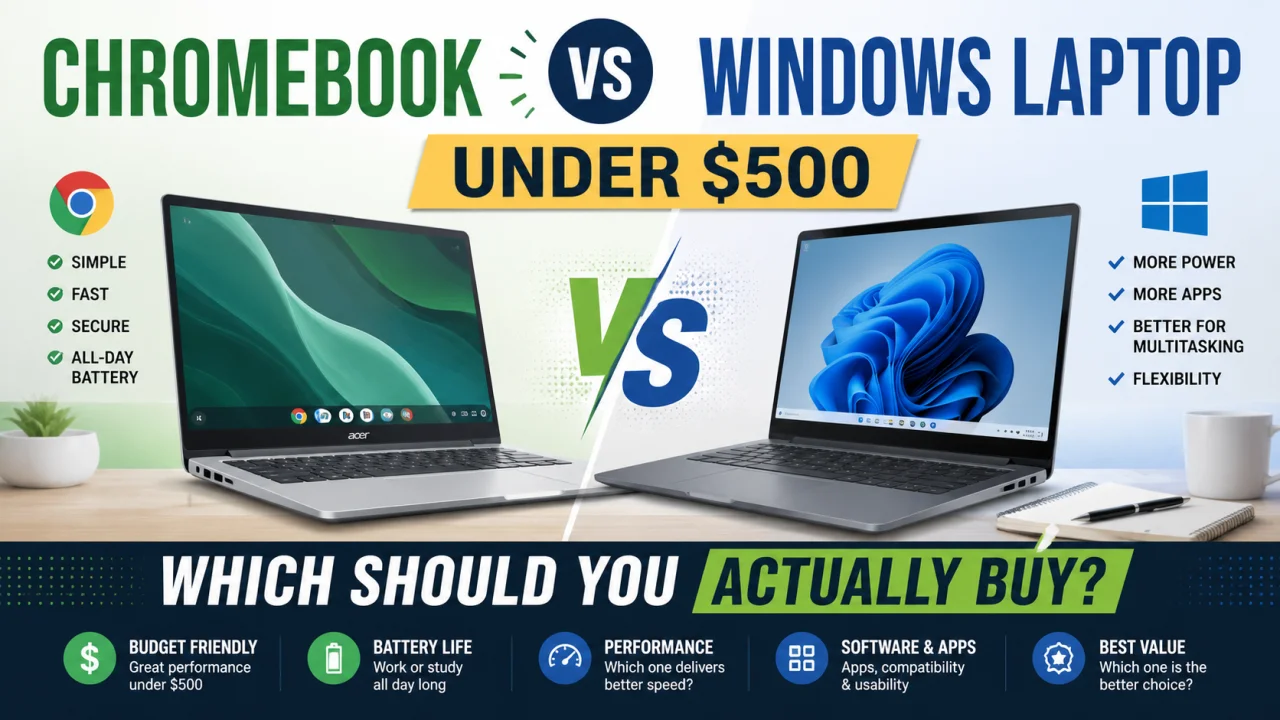
Once you've decided to spend under $500 on a laptop, the next decision matters more than most people realise: Chromebook or Windows? At this price point, the two aren't just different operating systems — they're genuinely different machines built for different jobs, and picking the wrong one means living with real friction every day.
The Short Version
- Chromebook if your work happens mostly in a browser: email, Google Docs, Zoom, streaming, light research
- Windows laptop if you need specific desktop software: Adobe apps, Microsoft Office installed locally, certain accounting or design tools, or anything requiring offline installation
If you're not sure which camp you fall into, keep reading — the difference shows up in daily use in ways spec sheets don't capture.
What $500 Actually Buys You in Each Category
Chromebooks Under $500
At this price, you're typically looking at:
- A mid-range processor (often an Intel Core i3 or a capable ARM chip) that feels notably snappier than a similarly priced Windows machine, because ChromeOS is lighter
- 8GB RAM, sometimes 4GB on the cheapest models — 8GB is worth prioritising
- A smooth, fast boot and near-instant wake from sleep
- Long battery life, often 10+ hours, since ChromeOS is efficient with power
- Built-in access to Android apps via the Google Play Store, useful for some productivity and entertainment apps
Windows Laptops Under $500
At the same price:
- Processors are usually a step down in raw power for the same money — you'll often see older-generation Intel or AMD chips
- 8GB RAM is standard, sometimes with room to upgrade
- Storage tends to be smaller SSDs (128GB–256GB) that fill up faster with installed software
- Battery life is generally shorter than an equivalent Chromebook, often 6–8 hours
- Full compatibility with desktop software: Photoshop, QuickBooks, CAD tools, PC gaming (within reason), and anything requiring a proper Windows install
Where Each One Genuinely Wins
Chromebook Wins If You:
- Do most of your work in Google Docs, Sheets, Gmail, or web-based tools already
- Want a laptop that stays fast for years without slowing down (ChromeOS has far less bloat)
- Prioritise battery life for commuting, classes, or working from cafes
- Are buying for a student whose school uses Google Classroom
- Want lower long-term maintenance — no antivirus subscriptions, minimal update friction
Windows Laptop Wins If You:
- Need specific installed software that has no reliable web version (accounting software, CAD, certain creative tools)
- Work with large files that need full desktop-class file management
- Occasionally need offline access to Microsoft Office files with full formatting fidelity
- Play PC games, even casually — ChromeOS gaming support remains limited
- Need to run business software required by an employer that isn't cloud-based
The Trade-Offs Nobody Mentions
Chromebooks struggle offline. While offline mode has improved significantly, a poor internet connection still meaningfully limits what you can get done on a Chromebook in a way it doesn't on Windows.
Windows laptops under $500 often feel slower than Chromebooks at the same price, because you're running a heavier OS on similar or lesser hardware. If snappy day-to-day performance matters more to you than software compatibility, this is worth sitting with.
Storage philosophy is different. Chromebooks lean on cloud storage (Google Drive), which is great until you're somewhere with no signal and need a file that's not synced locally. Windows laptops store everything locally by default, which is more forgiving but eats your limited SSD space faster.
A Simple Way to Decide
Open your current laptop or check your phone's most-used apps for a week. If 80%+ of what you do lives in a browser tab already — email, docs, video calls, streaming, social — a Chromebook at this price point will likely outperform a Windows machine in daily experience. If any regular task requires a specific installed program, Windows is the safer buy, even if it means accepting a slightly less snappy machine for the money.
The Bottom Line
Under $500, you're not really choosing between "better" and "worse" — you're choosing between two machines optimised for different workflows. Match the laptop to how you actually spend your day, not to which one has the more familiar name on the box.
Frequently Asked Questions
Q: Can I install Microsoft Office on a Chromebook? You can use the web versions of Word, Excel, and PowerPoint, plus Android or Progressive Web App versions with some feature limitations. Full desktop Office with complete offline functionality requires Windows.
Q: Do Chromebooks work for video editing? Basic, browser-based video editing (like light edits in web apps) is possible, but serious video editing software generally isn't available on ChromeOS. For regular editing work, a Windows or Mac laptop is the better choice.
Q: Are Windows laptops under $500 good enough for programming? For lightweight coding, text editors, and web development, yes — many run VS Code and similar tools comfortably. For resource-heavy development (large builds, virtual machines, or Android Studio), you'll likely feel the limits of budget hardware.
Q: Which lasts longer, a Chromebook or a budget Windows laptop? Chromebooks tend to stay usable for longer because ChromeOS carries less overhead over time. Windows laptops can slow down more noticeably as updates and installed software accumulate, particularly on limited storage.
Q: Can I game on a Chromebook? Cloud gaming services (like streaming a game from a server) work reasonably well if your internet connection is strong. Locally installed PC games generally don't run on ChromeOS, so serious gaming still points to Windows.
Q: Is 4GB of RAM enough for a Chromebook in 2026? It's workable for very light use — a handful of browser tabs and basic web apps — but 8GB is strongly recommended if you multitask with several tabs, video calls, or Android apps open at once.

The Editorial Team
We are a collective of tech enthusiasts and digital experts dedicated to making sense of the evolving digital landscape for our global audience.
Connect With Us
0 Perspectives