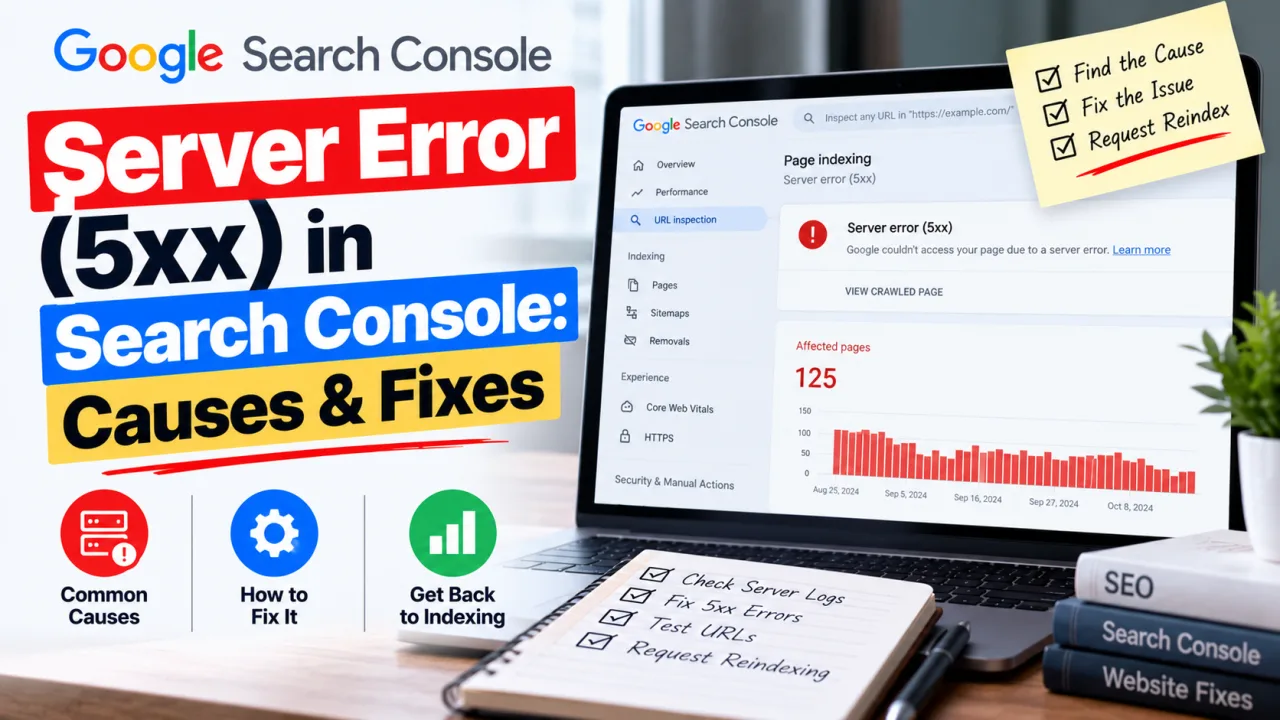
Few Search Console messages sound as alarming as "Server error (5xx)." It reads like your whole site is down. Sometimes it is. Often it isn't, and the report is pointing at a handful of odd URLs that failed once. The skill is working out which situation you're in before you start changing things.
What the error actually means
When Googlebot requests a URL, your server answers with a status code. Anything starting with 5 (500, 502, 503, 504) means the server failed to complete a request it should have been able to handle. Google can't read the page, so it can't index it, and the URL appears under "Pages" with the status "Server error (5xx)."
This is different from a 404, where the server works but the page doesn't exist. It's also different from "Crawled – currently not indexed", where Google fetched the page fine and decided not to list it. If that's your report, see our guide to fixing crawled but not indexed pages.
Read the pattern first
The examples in the report tell you most of what you need.
| What you see | Likely cause | First move |
|---|---|---|
| Many different, normal-looking URLs, all failing | Server capacity, hosting limits or a site-wide misconfiguration | Check hosting resource usage and the error log |
| Intermittent failures on normal URLs that work when you test | Traffic spikes, slow database, or a firewall or rate limiter blocking Googlebot | Look at crawl stats and security rules |
| Weird URLs with long query strings you never created | Spam or bots hitting a feature like internal search | Fix the handler so junk returns 404, not 500 |
| One section of the site fails, the rest is fine | A code bug in that template or controller | Reproduce it and read the application log |
| Everything fails right after an edit | A syntax error in .htaccess or server config | Revert the last change |
Step 1: Test the URL yourself
Open Search Console, go to Indexing > Pages > Server error (5xx), and click one of the example URLs. Run URL Inspection > Test Live URL. If the live test succeeds, the failure was temporary or has already been fixed. If it fails, you can reproduce the problem right now, which is the best place to be.
You can also check from a terminal:
bash
curl -I https://example.com/the-failing-url
To see how the server treats a crawler-like request:
bash
curl -I -A "Mozilla/5.0 (compatible; Googlebot/2.1; +http://www.google.com/bot.html)" https://example.com/the-failing-url
This only imitates Googlebot's user agent. A firewall that checks IP addresses may still treat the real Googlebot differently, so a clean result here doesn't rule out a blocking rule.
Step 2: Look at your server logs
Logs show what Google actually received. On a standard Apache or Nginx log format, this lists Googlebot requests that got a 5xx response:
bash
grep Googlebot access.log | awk '$9 ~ /^5/'
Then read the error log for the same timestamps. A PHP fatal error, a database connection failure or an out-of-memory message usually names the cause directly.
Step 3: Check the Crawl Stats report
In Search Console, open Settings > Crawl stats. The "Host status" and "By response" sections show whether Google has seen your server fail repeatedly and whether the failures cluster at certain times. Spikes that line up with traffic peaks, backups or cron jobs point to capacity. Constant failures point to something broken.
Step 4: Fix the cause
Capacity. Shared hosting plans cap CPU, memory and concurrent processes, and Googlebot crawling many pages at once can push you over the limit. Fix options, roughly in order of effort: add page caching, optimise slow queries, put a CDN in front, or move to a plan with more headroom.
A security tool blocking Googlebot. Rate limiters, bot protection and some WAF rules can return errors to a crawler that makes many requests quickly. Check the rules and allow verified Googlebot traffic. Verify the real crawler through reverse DNS or Google's published IP ranges rather than trusting the user agent string, which is trivial to fake.
Planned maintenance. If you take the site down on purpose, return a 503 with a Retry-After header. That tells Google the outage is temporary. A maintenance page that returns 200 gets indexed as content. A 500 looks like a real fault.
A bug in your code. If one section fails, find what's different about it. Check recent deployments, the application log, and any code that assumes data exists when it might not.
A configuration error. A single typo in .htaccess returns 500 for the whole site, and the Apache error log names the line. If you edit redirect rules, test them straight after. Our guide to removing index.php and fixing .htaccess 404s covers the mistakes that cause most of these.
Junk URLs that shouldn't exist. If the failing URLs are spam like /search?q= followed by promotional text, the real fix is making your application return a 404 for them instead of crashing. We walk through it in how to stop spam search URLs from being indexed.
Step 5: Validate the fix
Once the cause is fixed, return to the issue in Search Console and click Validate Fix. Google then rechecks a sample of the affected URLs. The process can take a couple of weeks, so don't expect an answer the next morning, and don't click it before the fix is live.
Not every URL needs validation. If the failing URLs were junk that should never have existed, you can let them drop out on their own once they return 404.
Why you shouldn't ignore it
A few isolated 5xx entries are rarely a problem. Persistent errors are. If Googlebot keeps hitting failures, it may slow its crawl of your site, and URLs that fail for long enough can eventually be dropped from the index. New posts may also take longer to appear. The sooner you find the pattern, the less of this you'll see.
Frequently Asked Questions
What's the difference between a 500 and a 503? A 500 means the server hit an unexpected error. A 503 means the service is temporarily unavailable. Use 503 with a Retry-After header for planned downtime so Google knows to come back.
Will 5xx errors hurt my rankings? A few won't. Sustained errors across many pages can reduce crawling and may lead to pages being dropped from the index until they're fixed.
The page loads fine for me. Why does Search Console show an error? The failure may have been temporary, specific to Googlebot (for example a firewall rule), or have happened at a busy moment. Run a live test in URL Inspection and check your logs for the crawl time.
How long does Validate Fix take? Usually a couple of weeks. Google rechecks a sample of URLs, and the status updates when they pass.
Do 5xx errors affect my entire site? Only the URLs that failed. But if the cause is capacity or misconfiguration, the problem can spread to many URLs, which is why the pattern in the examples matters.
Should I block the failing URLs in robots.txt? Usually not. If the URLs shouldn't exist, make them return 404. If they should work, fix the error. Blocking hides the symptom without removing the cause.

The Editorial Team
We are a collective of tech enthusiasts and digital experts dedicated to making sense of the evolving digital landscape for our global audience.
Connect With Us

0 Perspectives