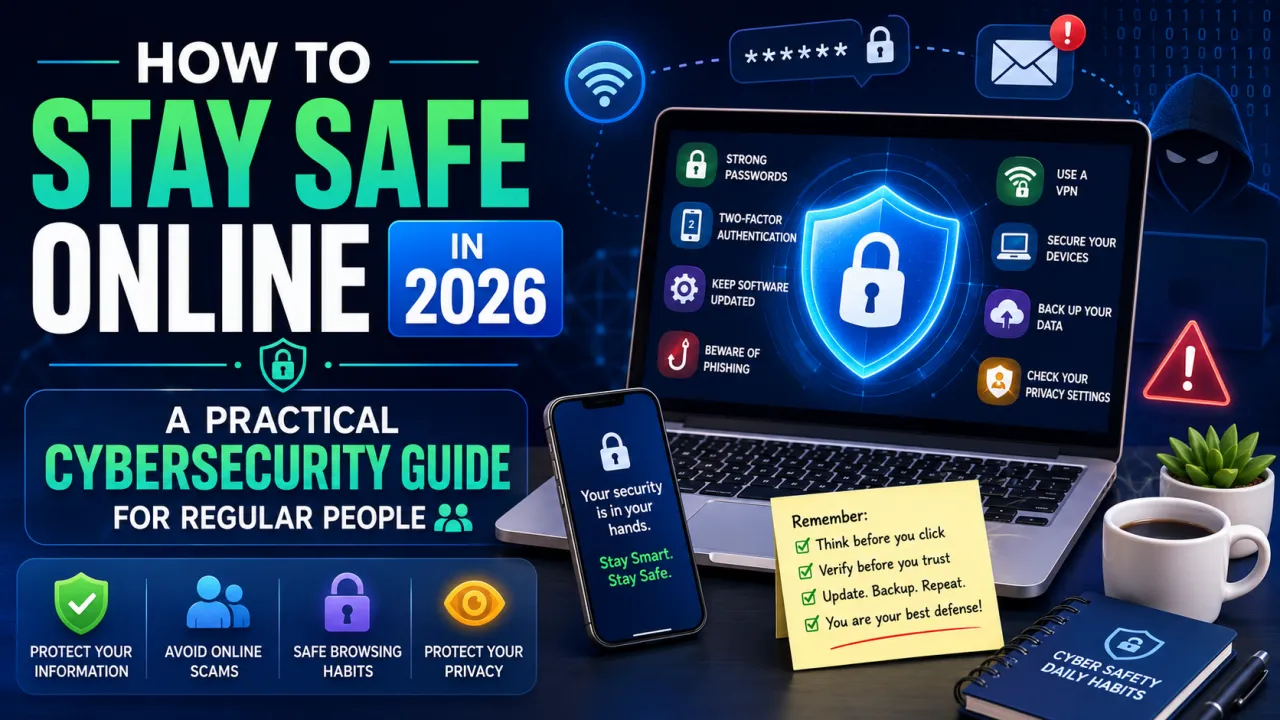
Cybersecurity advice is usually one of two extremes. Either it's dismissively simple ("use a strong password!") or so technical it might as well be written in another language. Neither actually helps regular people stay safe.
This guide is different. It covers the most important steps you can take, in plain English, in roughly the order of what matters most.
The Actual Threat Landscape
Before tips, context: most people aren't targeted by sophisticated hackers. The realistic threats are:
- Phishing: Fake emails or texts that trick you into giving up passwords or payment details
- Data breaches: Your email and password from an old website gets leaked and used to access your other accounts
- Weak passwords: Attackers use software to guess common passwords at scale
- Malware: Software that gets onto your device through dodgy downloads or links
The good news? All four of these threats are largely preventable with a handful of consistent habits.
Step 1: Use a Password Manager
This is non-negotiable in 2026.
The average person has over 100 online accounts. Using the same password for multiple accounts means that one data breach can compromise everything. Using unique, complex passwords for every site is impossible without help.
A password manager (Bitwarden is free and excellent; 1Password and Dashlane are premium options worth considering) stores all your passwords in an encrypted vault. You remember one master password. It remembers everything else — and generates strong, unique passwords for new accounts automatically.
Start here before anything else. This single step removes the most common path through which people get hacked.
Step 2: Turn On Two-Factor Authentication
Two-factor authentication (2FA) means that even if someone has your password, they can't log in without a second code — usually from your phone.
Enable it on: email accounts, banking, social media, your password manager itself, and any account with financial or personal information.
Authentication app > SMS. SMS codes can be intercepted through SIM-swapping attacks. Use an authentication app (Google Authenticator, Authy, or built into Bitwarden) when the site supports it.
Step 3: Know How to Spot Phishing
Phishing is the most common way people get compromised. The attacks are far more convincing than they used to be — AI has made it easy to generate professional-looking, grammatically correct fake emails.
Warning signs to watch for:
- Unexpected urgency ("Your account will be closed in 24 hours")
- Requests to click a link and log in to verify something
- Sender email addresses that are close but not exactly right (support@paypa1.com vs support@paypal.com)
- Any request for payment via gift card, wire transfer, or crypto
Golden rule: Never click links in unexpected emails. Go directly to the website by typing the address into your browser. If the email is real, you'll see the same notification when you log in directly.
Step 4: Check If You've Been in a Data Breach
Go to haveibeenpwned.com and enter your email address. This free service, run by security researcher Troy Hunt, shows you every known data breach your email appeared in.
If your email has been in breaches — and statistically, it probably has — change the passwords for those sites immediately (using your new password manager) and enable 2FA.
Step 5: Keep Devices Updated
Software updates often contain critical security patches. When you ignore "Update Available" notifications, you're leaving known vulnerabilities open to attackers.
- Enable automatic updates on your phone and computer
- Keep apps updated through the App Store or Google Play
- Don't ignore browser updates (Chrome, Safari, Firefox all push security fixes regularly)
This is boring advice, but it's genuinely important.
Step 6: Be Careful With Public Wi-Fi
Coffee shops, airports, hotels — public Wi-Fi is convenient but can be intercepted.
If you use public Wi-Fi regularly: Consider a reputable VPN (Mullvad and ProtonVPN are well-regarded). A VPN encrypts your connection so that even if someone is watching the network, they can't read your data.
At minimum: Avoid logging into banking or sensitive accounts on public Wi-Fi. Wait until you're on your home network or mobile data.
Step 7: Secure Your Phone
Your phone is often the most valuable thing an attacker could get access to — it holds your email, banking apps, authentication codes, and personal data.
Basics:
- Use a strong PIN (not 1234 or your birth year)
- Enable biometric lock (Face ID, fingerprint)
- Enable Find My (iPhone) or Find My Device (Android)
- Enable full disk encryption (on by default on modern iPhones; enable in Android settings)
If you lose your phone, you want to be able to wipe it remotely. Make sure that's set up before you need it.
Step 8: Back Up Everything
The best defense against ransomware (malware that encrypts your files and demands payment) is a backup it can't reach.
Follow the 3-2-1 rule: 3 copies of important data, on 2 different media types, with 1 copy offsite (cloud).
For most people: enable iCloud or Google Drive sync for photos and documents, plus an occasional external hard drive backup for the really important stuff.
What You Don't Need to Worry About (As a Regular User)
The threats that make headlines — nation-state attackers, zero-day exploits, advanced persistent threats — are almost never what regular individuals face. Those are targeted at corporations and governments.
Your threats are more mundane, more common, and much more preventable. The steps above address them comprehensively.
Final Thoughts
Cybersecurity doesn't require paranoia. It requires a handful of good habits:
- Password manager with unique passwords
- Two-factor authentication on important accounts
- Skepticism toward unexpected emails
- Regular updates
- Phone secured and backed up
Do these things once, set them up properly, and they largely run themselves. You'll be better protected than the vast majority of people online.

The Editorial Team
We are a collective of tech enthusiasts and digital experts dedicated to making sense of the evolving digital landscape for our global audience.
Connect With Us
0 Perspectives